This release tidies the menu, adds the amount due to WhatsApp booking messages, shows profile photos across staff screens and fixes several smaller problems.
New
A tidier menu, with Quick Booking on phones
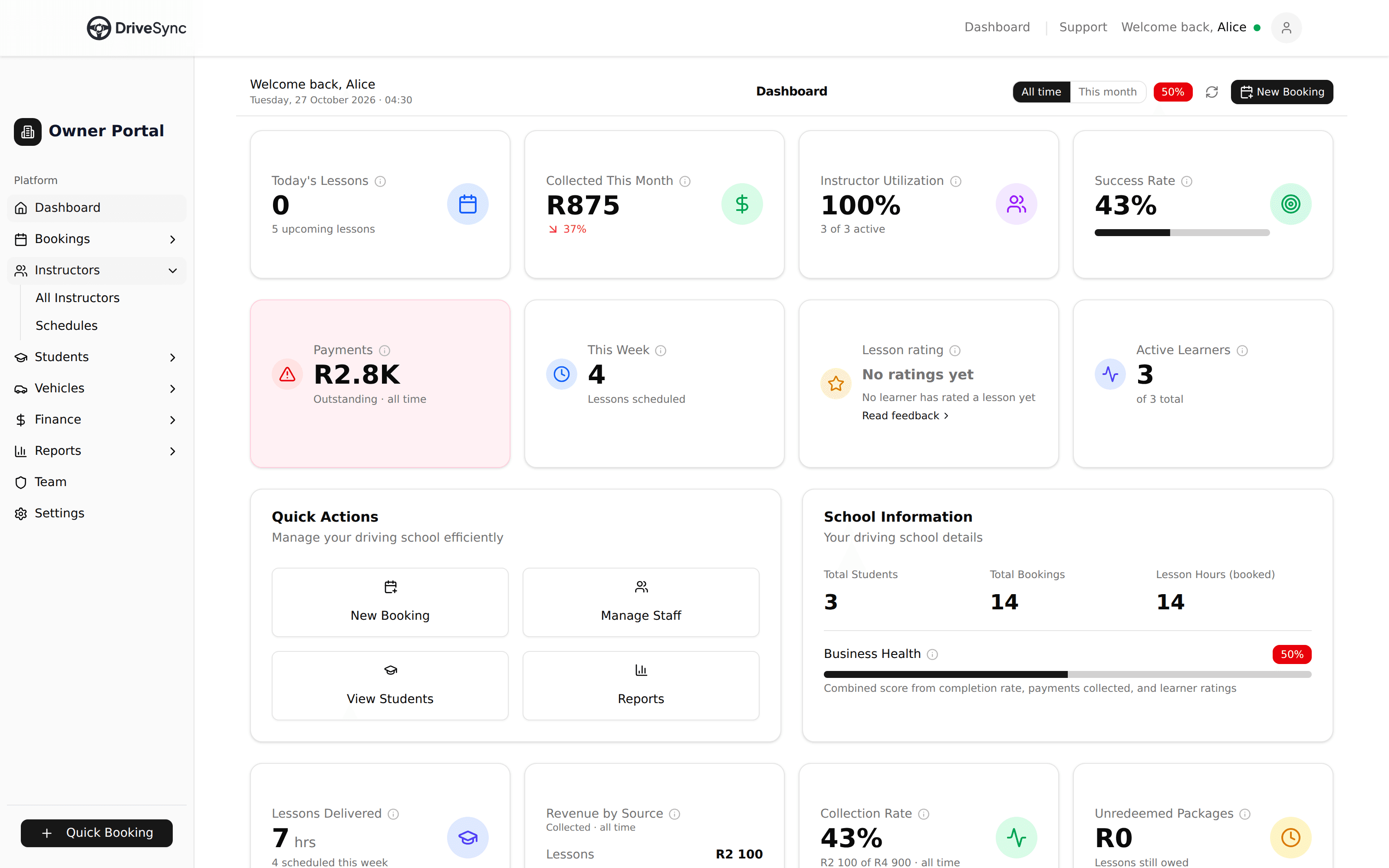
For owners and admins, the menu now reads Dashboard, Bookings, Instructors, Students (with Lesson Feedback), Vehicles, Finance, Reports, Team and Settings. Create Booking, Add Instructor and Invite User are no longer separate menu links. You add things with the button on each list screen, or with Quick Booking. On phones, the menu folds into groups. Only the group for the screen you are on starts open, and opening another group closes the one that was open, so the menu doesn't scroll forever.
How to use it
1Open the menu to see the new order
2To add a booking, tap Quick Booking at the bottom of the menu, or open Bookings and use the button on that screen
3To add an instructor or invite someone, open Instructors or Team and use the button on that screen
4On a phone, tap a group heading to open it
5To sign out or open What's new, use your account menu at the top right
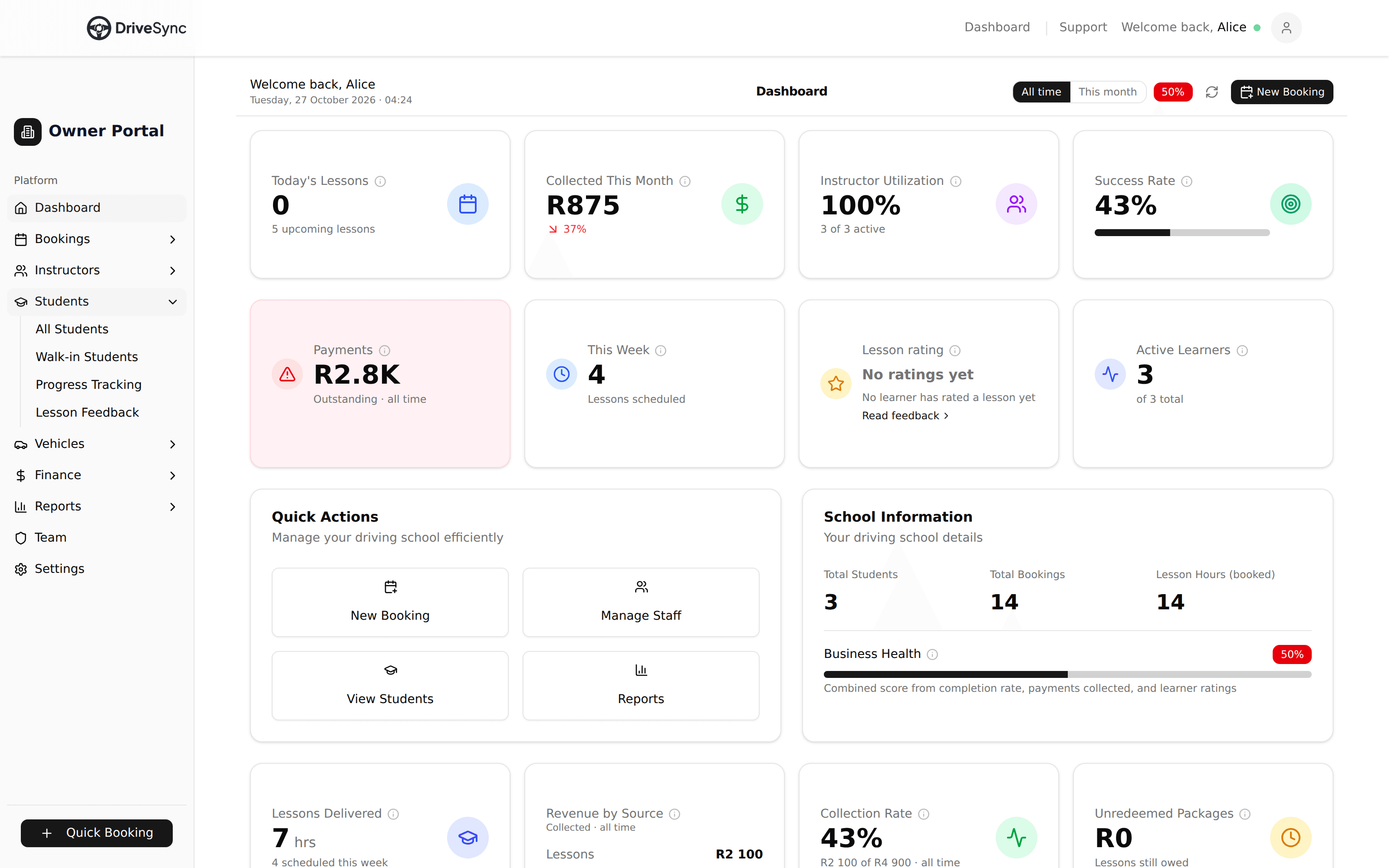
The owner menu in its new order, with Students opened to show Lesson Feedback and Quick Booking at the bottom, on the owner dashboard.
Amount due on WhatsApp booking messages
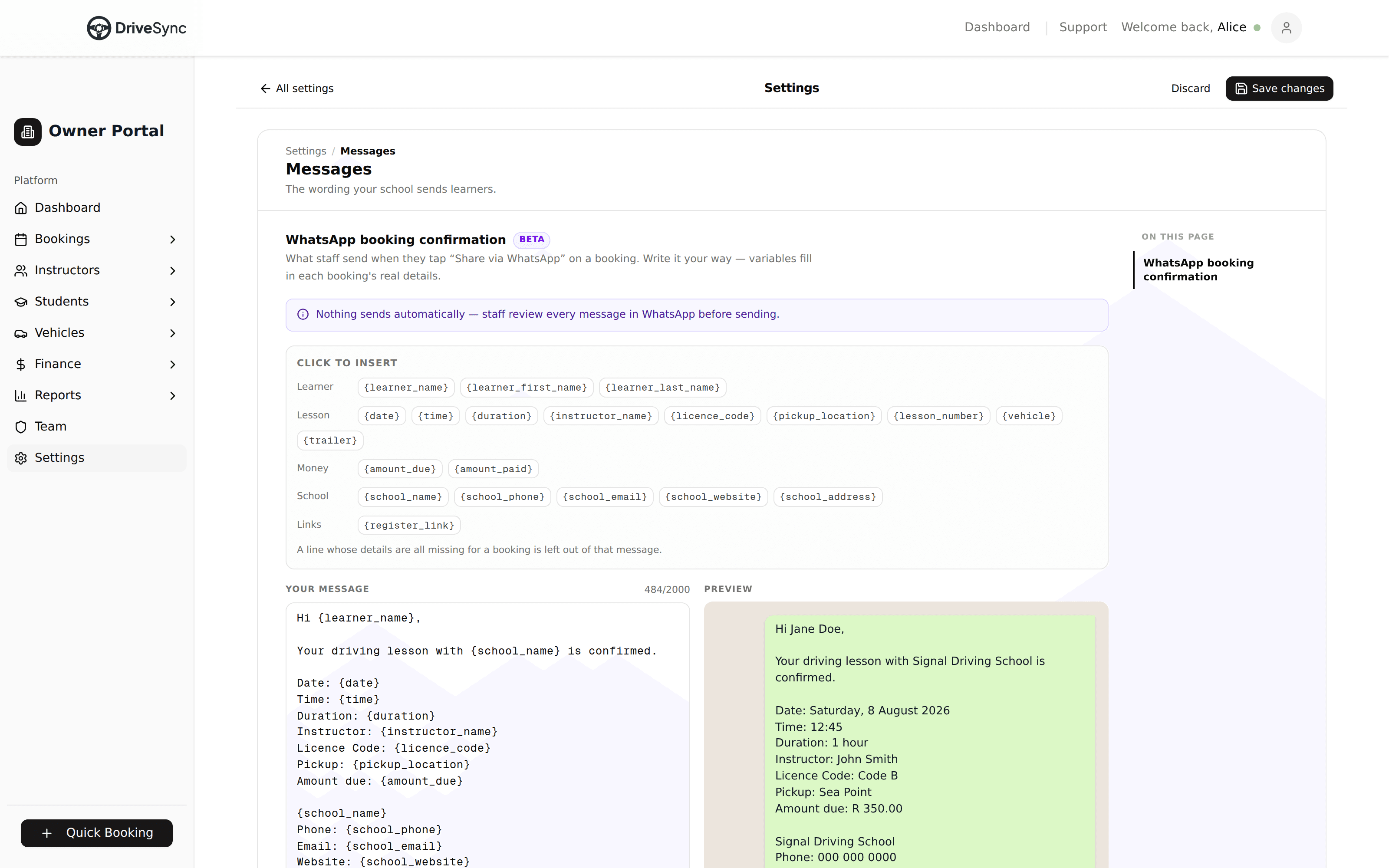
When a lesson hasn't been paid, the default booking message now includes a line such as "Amount due: R 450.00", so the learner knows what to bring or pay. If the lesson is paid or covered by a package, the line is left out instead of showing R 0.00. If your school uses its own message, you can add the amount due to it yourself.
How to use it
1Create or open a booking and send the WhatsApp booking message as usual
2To add the amount due to your own message, go to Settings, then Messages, and add the amount due field to your template
The default WhatsApp booking message with its new "Amount due: R 350.00" line in the preview, and the {amount_due} field you can insert, under Settings › Messages.
Profile photos on staff screens
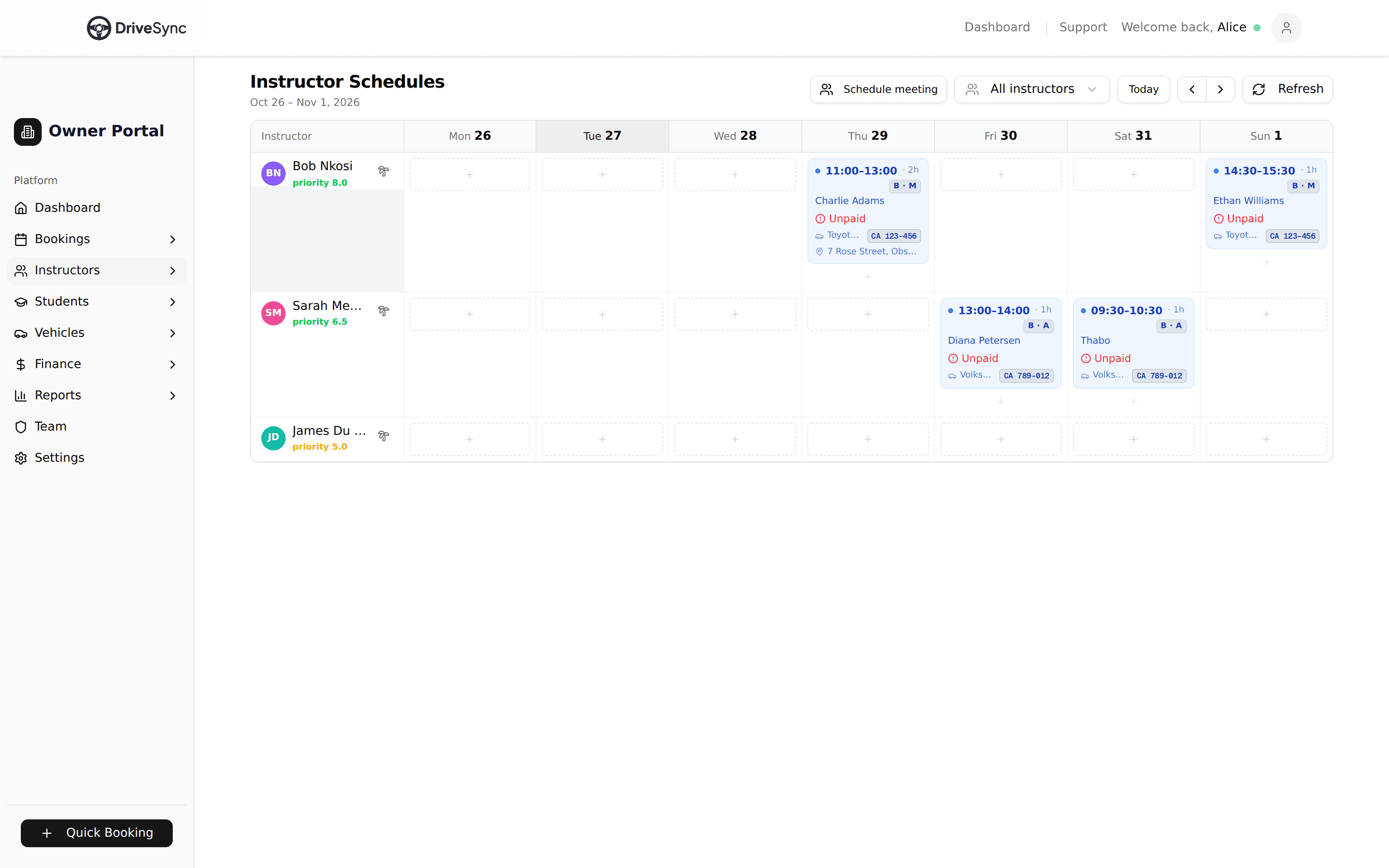
Where a person has a profile photo, it now shows instead of their initials on Team, Instructor Schedules and the student and instructor side panels, so it is easier to spot who is who. On Instructor Schedules, each instructor's schedule colour stays as a ring around the photo. If someone has no photo, or it can't load, their initials show as before.
Instructor avatars in their schedule colours next to each instructor's week, under Instructors › Schedules, showing initials because these instructors have no profile photo yet.
The installed app opens on your dashboard
If you installed DriveSync on your phone or computer, it now opens on your dashboard instead of the website's home page. Visiting the home page while signed in also takes you to your dashboard, and the DriveSync logo inside the app takes you back to your dashboard home. Opening the app with no internet connection shows a DriveSync offline page instead of a browser error.
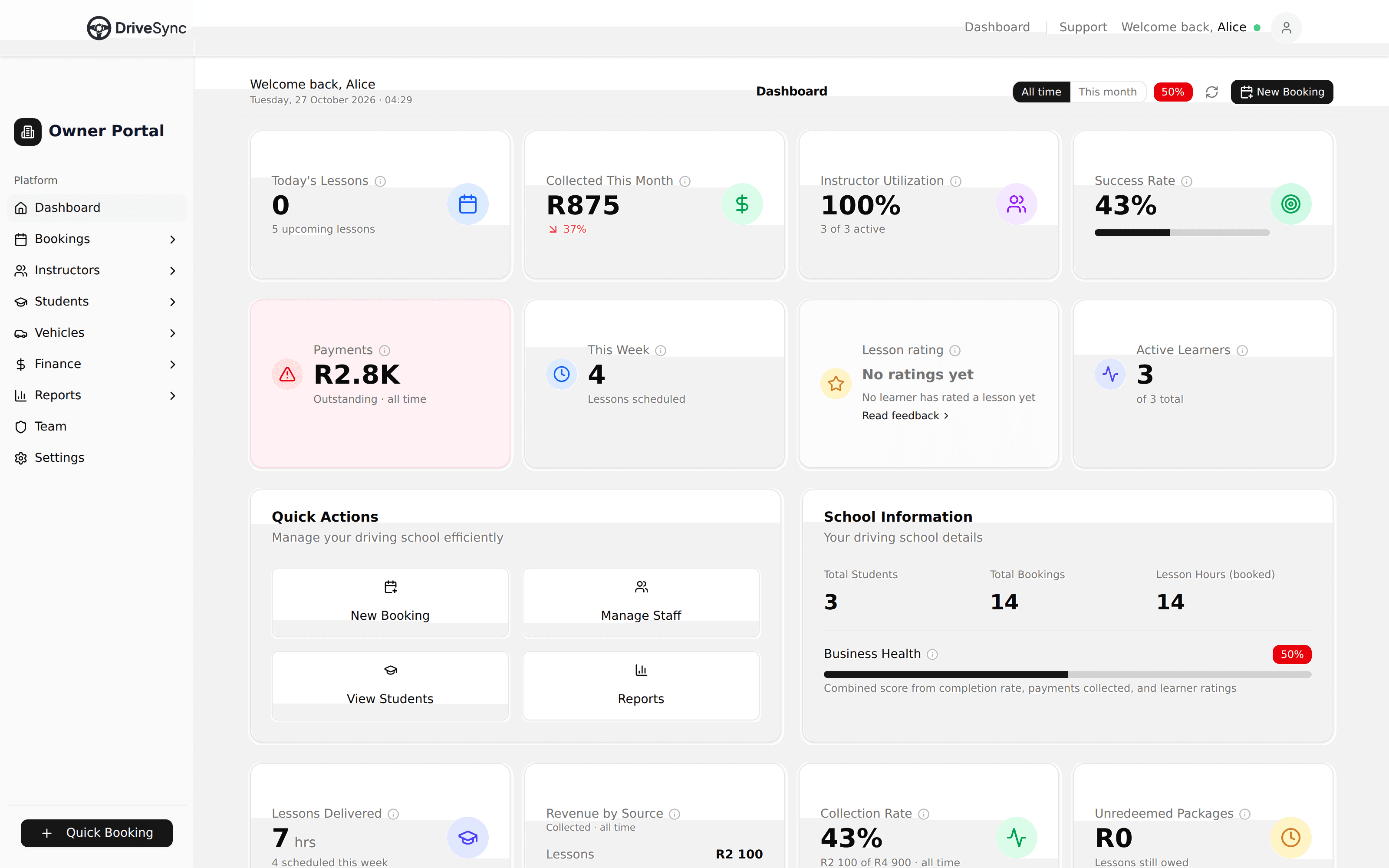
The owner dashboard, which now opens straight away when a signed-in owner launches the installed app or visits the DriveSync home page.
Share suggestions and answer short surveys
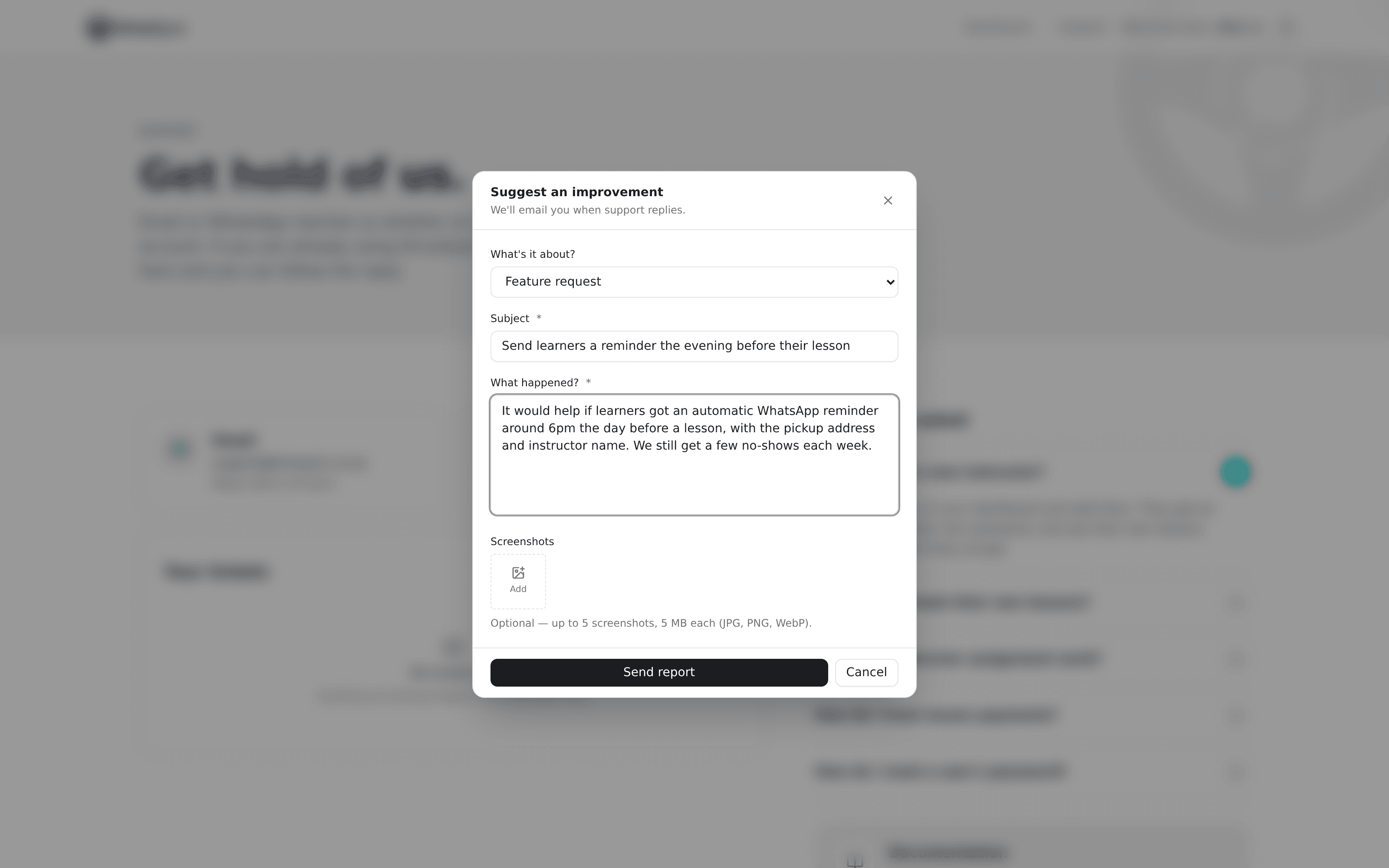
You can now send us ideas from Suggest an improvement in your account menu. From time to time, you may also see a short survey card, for example on your dashboard home or after creating a booking. You can answer it or close it. The privacy policy has been updated to explain that DriveSync keeps records of how the app is used so it can be improved. It also says surveys are never shown to learners known to be under 18.
How to use it
1Open your account menu at the top right
2Tap Suggest an improvement and send your idea
3If a survey card appears, answer it or close it
The Suggest an improvement form, opened from the account menu, with an owner's idea for evening lesson reminders filled in.
Fixed
Staff counts and the setup checklist use real data
Your school's instructor count, booking count, review count and rating showed 0. Because of this, the staff step on the owner setup checklist never ticked off. Owners and admins who also teach weren't counted as instructors, and staff on leave were still counted as active instructors.
Why it mattered: These figures now come from your school's real data and update as soon as you add an instructor. Owners and admins who teach count as instructors, staff on leave are no longer counted as active instructors on the dashboard card, and the availability view marks staff who are on leave.
The owner dashboard showing real school figures, including Instructor Utilization with 3 of 3 instructors active and 14 total bookings under School Information.
Links take you to the right page after signing in
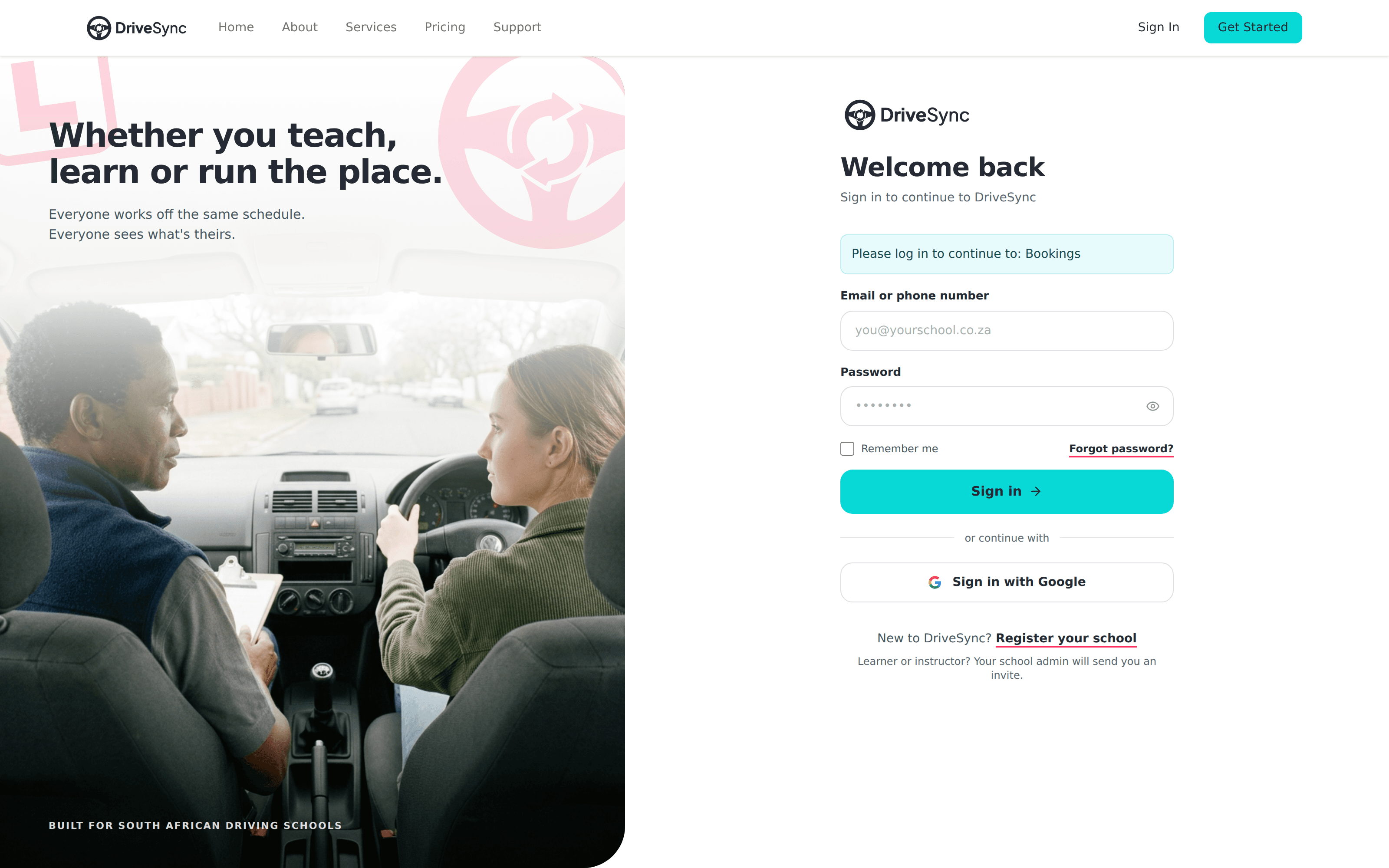
If you opened a link to a page in DriveSync while signed out, signing in took you to your dashboard instead of the page you wanted.
Why it mattered: After you sign in, you land on the page the link was for. The sign-in page only names DriveSync's own pages when it tells you where you are going.
The sign-in page telling a signed-out user they will continue to Bookings after signing in, after opening a link to that page.
Signing out always ends your session
If the app had been left open for a long time before you signed out, the session could stay alive in the background on that device.
Why it mattered: Signing out now always ends the session completely.
Issuing a credit no longer shows an error
When you issued a credit on a booking, the credit was saved but the app showed an error, so it looked like it had failed.
Why it mattered: The credit is saved and the app confirms it without an error.
Escape closes only the pop-up you are in
In a side panel, pressing Escape with a menu or confirmation open closed the whole panel. After choosing an option from the ⋯ menu, the keyboard could also stay behind the confirmation that opened.
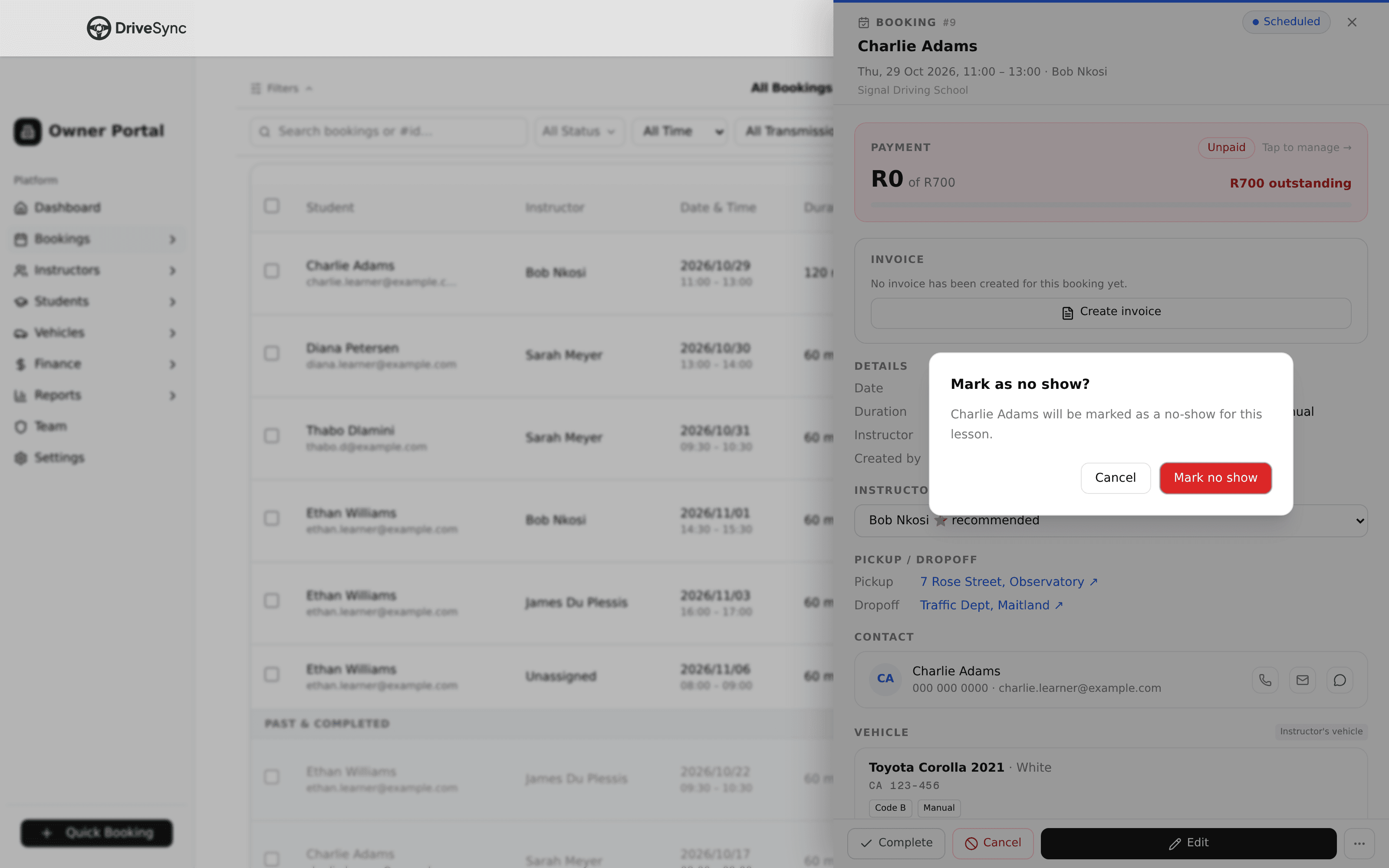
Why it mattered: Escape now closes only the menu or confirmation. Keyboard focus moves into confirmations opened from the ⋯ menu, stays inside them while you tab through, and goes back to the ⋯ button when you cancel.
The "Mark as no show?" confirmation opened from the ⋯ menu inside a booking's side panel under Bookings, where Escape now closes only the confirmation and leaves the panel open.
School website links open the right site
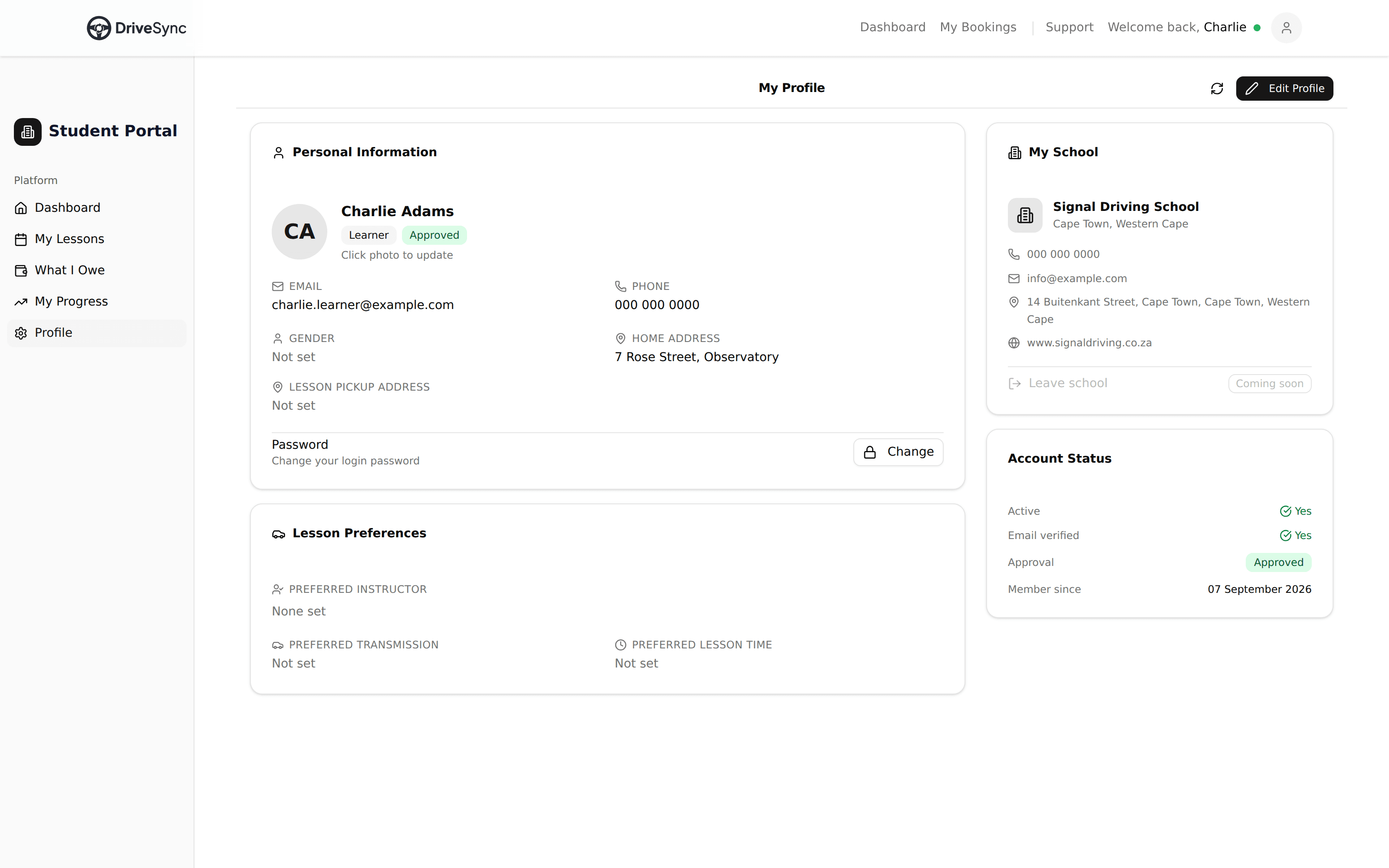
A school website entered without "https://", such as www.example.co.za, opened a page inside DriveSync instead of the website.
Why it mattered: The link now opens the school's actual website.
A learner's Profile page, where the school website www.signaldriving.co.za in the My School card now links to the school's real site.
No more blank dashboard screen from an old link
Opening the owner dashboard from an old or unknown link could show a blank screen, and the dashboard remembered it and showed it again the next time.
Why it mattered: The dashboard now only opens screens it knows, and goes to the Dashboard view in any other case.
Clearer error messages
Some messages shown when a form couldn't be saved started with "Value error," before the actual explanation.
Why it mattered: The messages now show only the explanation.
New schools approved by email can start working
When a new school was approved from the link in the registration email, it was not fully set up. It could still show as waiting for approval, and the school could not save changes in the app.
Why it mattered: Approving by email now works the same as approving in the app, so the school can start straight away.