This release adds a month filter to Who Owes Money, shows clearer lesson times on Schedules, and makes it easier to keep up with what changes in DriveSync.
New
See who owes money for a specific month
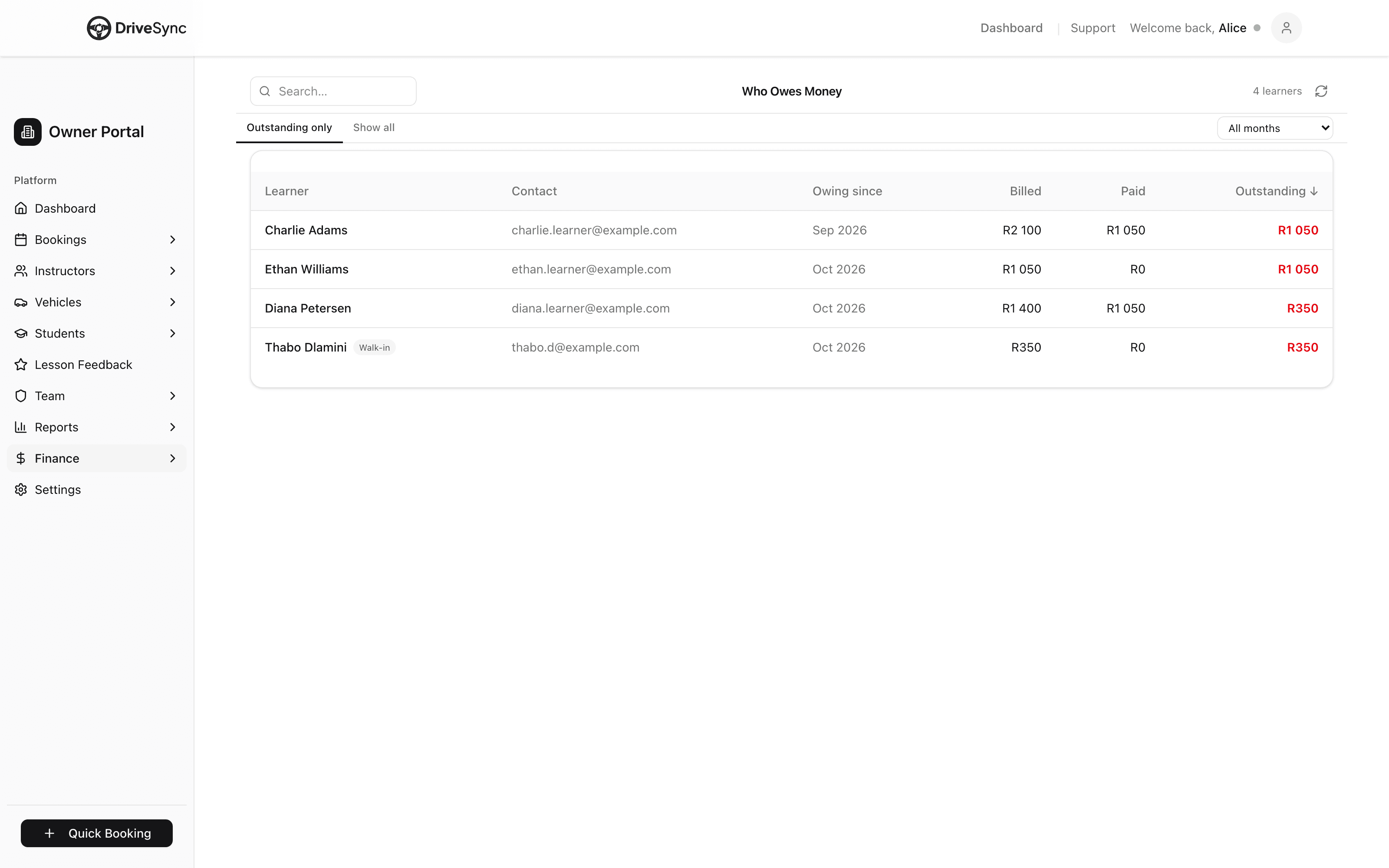
Who Owes Money now has a month filter. Pick a month to see only money from that month: lessons and driving tests by the date they were booked for, and packages by the date they were sold. A new Owing since column shows the date of each learner's oldest unpaid item, so you can see who has owed the longest and follow up with them first.
How to use it
1Open Who Owes Money
2Choose a month from the month filter, or leave it on all months
3Check the Owing since column for the oldest unpaid item per learner
4Tap a learner to open their balance. The panel shows their balance across every month
The Who Owes Money list under Finance, with the new month filter at the top right and a new Owing since column showing that Charlie Adams has owed since September 2026.
See when each lesson ends on Schedules
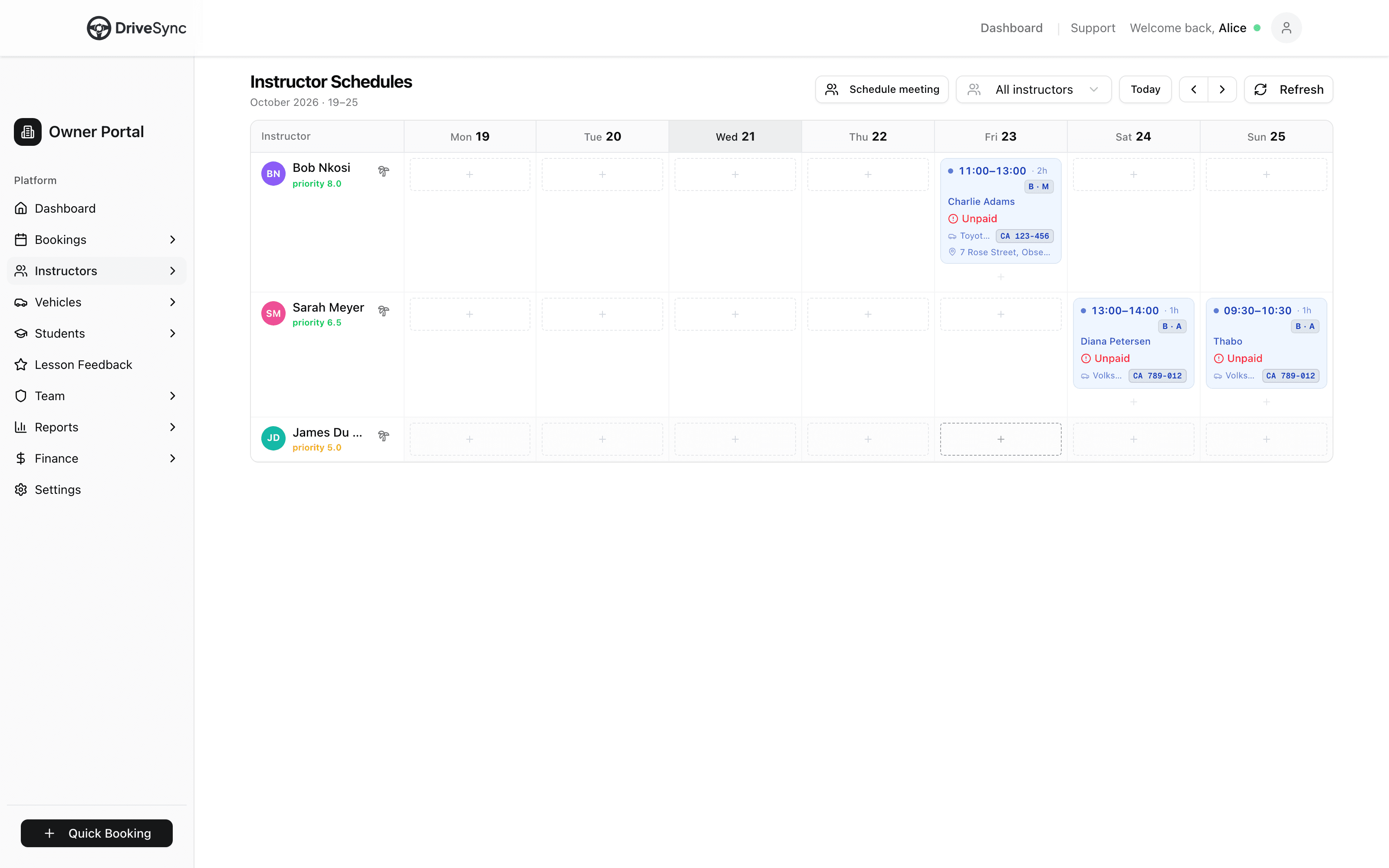
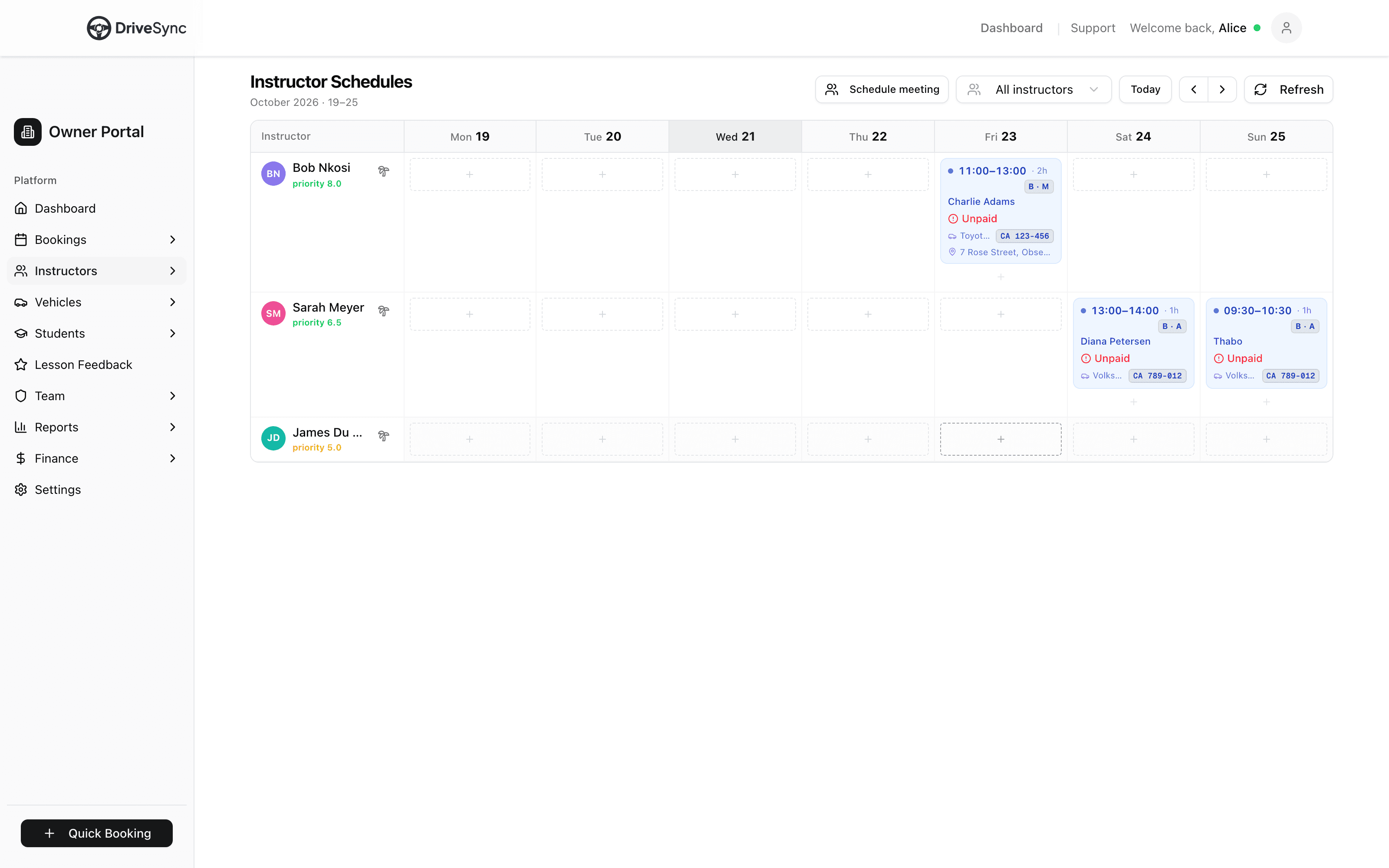
Bookings on Instructor Schedules now show the start time, end time and length, for example "09:00–11:00 · 2h", so you no longer have to work out when a lesson finishes. Lesson lengths also read as "2h", "1.5h" or "45 min" instead of "120min" on Schedules, the Calendar, the instructor home dashboard and the booking details.
How to use it
1Go to Instructors, then Schedules
2Each booking shows its start and end time, followed by its length
Bookings on Instructors › Schedules showing each lesson's start and end time with its length, such as Bob Nkosi's 11:00–13:00 · 2h lesson on Friday.
Keep up with what's new in DriveSync
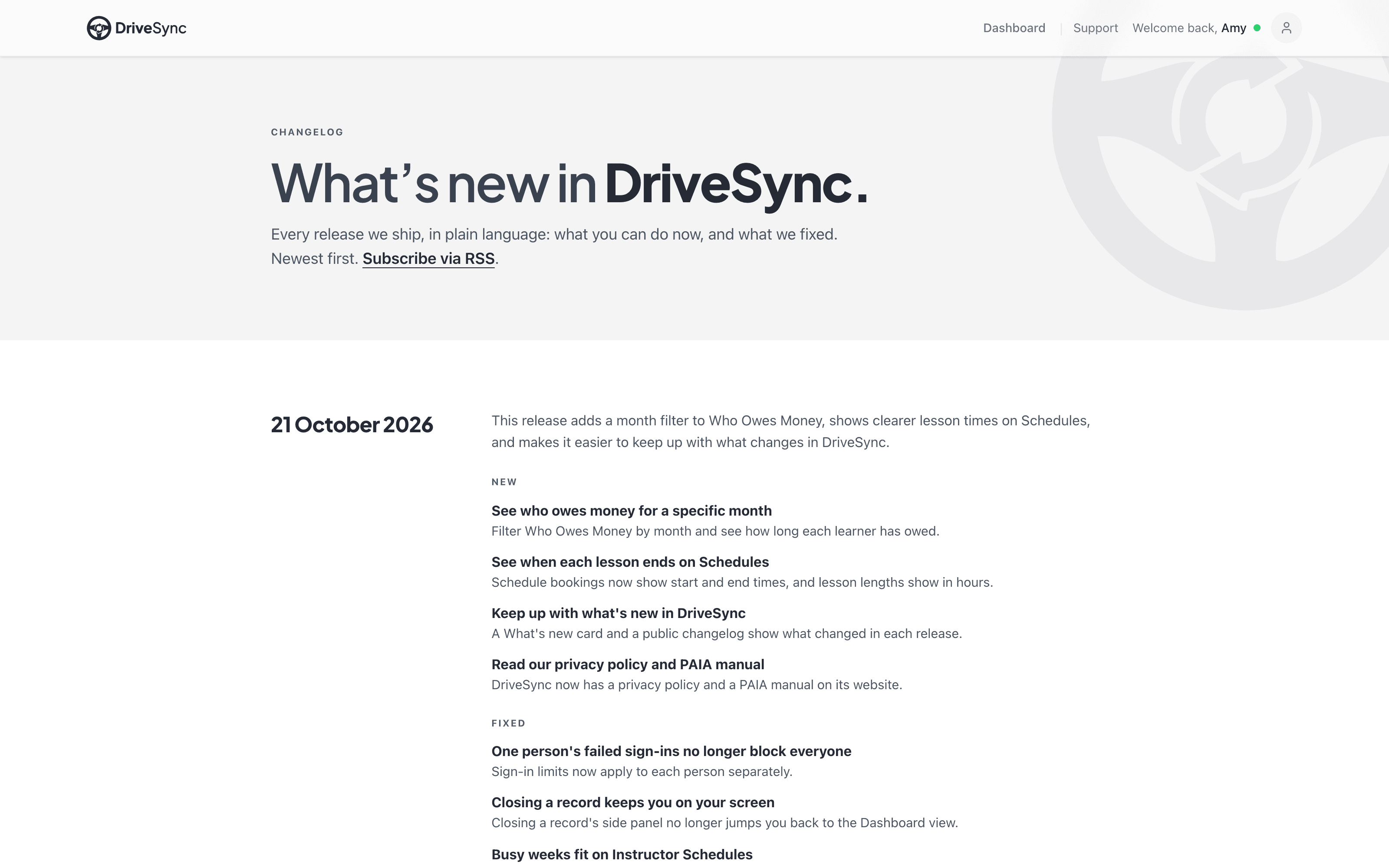
When DriveSync gets an update, owners and admins see a small What's new card on their dashboard once per release, with a link to the full notes. Every release is listed on the changelog page, which you can open from What's new in your account menu at any time. Owners and admins may also get an email about a release, and each email has a link to unsubscribe.
How to use it
1Look for the What's new card on your dashboard
2Tap it to read the release, or close it if you don't need it now
3To see earlier releases, open your account menu and tap What's new
4To stop release emails, tap the unsubscribe link in the email, then confirm on the page that opens
The DriveSync changelog page listing the 21 October 2026 release, opened from What's new in the account menu.
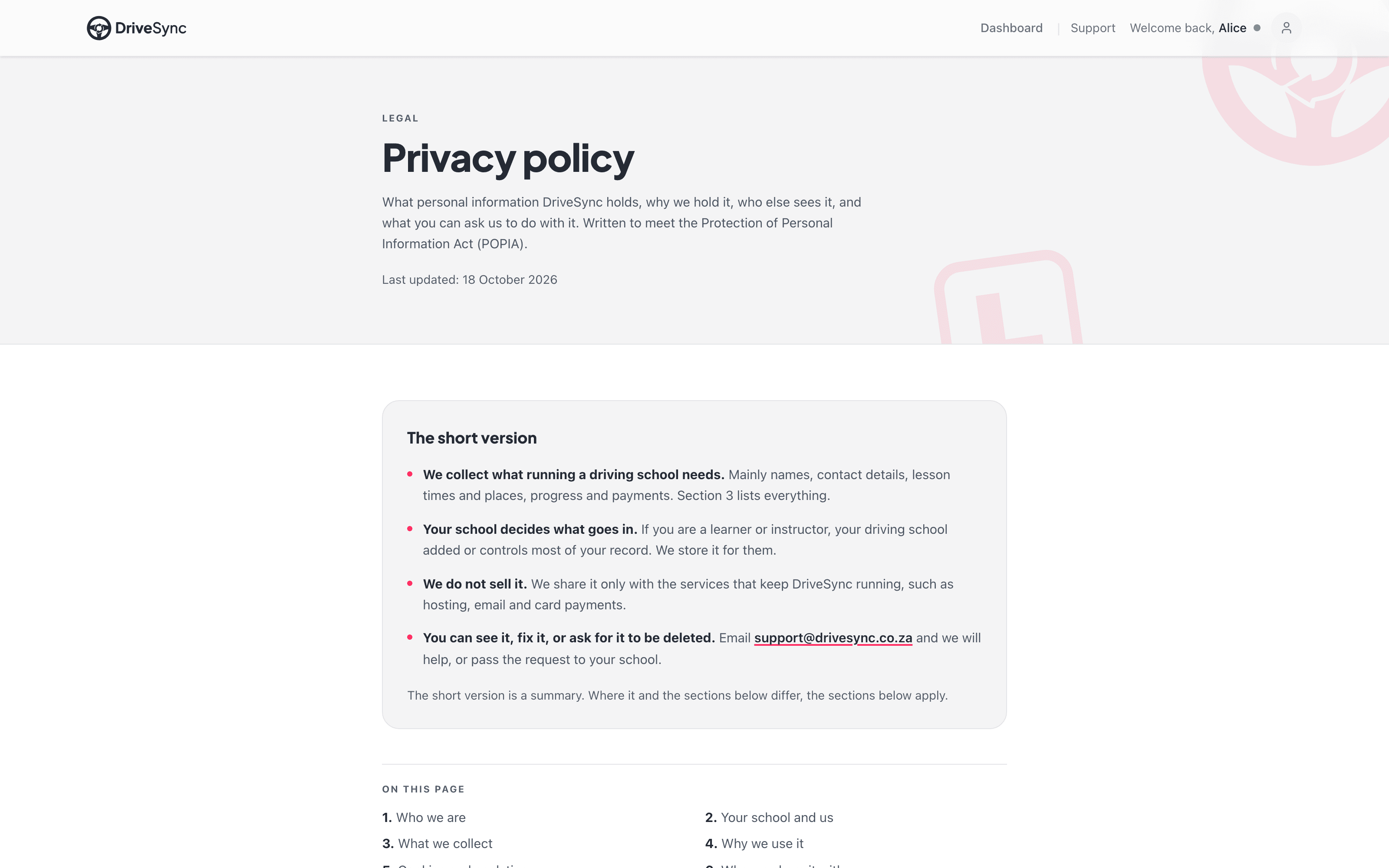
Read our privacy policy and PAIA manual
A new privacy policy explains what information DriveSync stores and how it is handled under POPIA. Your school is responsible for your learner and instructor records, and DriveSync processes them on your behalf. A PAIA manual is also available, and it explains how to ask for your own information.
How to use it
1Scroll to the footer of the DriveSync website
2Tap the privacy policy or PAIA manual link
The new DriveSync privacy policy page, opened from the website footer, with its plain-language summary of how information is handled under POPIA.
Fixed
One person's failed sign-ins no longer block everyone
DriveSync counted sign-in attempts from everyone together, so a few wrong passwords from one person could stop other people from signing in, and heavy use across the app could hit the limit for all users.
Why it mattered: Limits now count each signed-in user, or each browser for sign-in and password reset, on its own. Someone else's mistakes no longer lock you out.
Closing a record keeps you on your screen
On the owner dashboard, closing a record's side panel could switch you back to the Dashboard view instead of the screen you were working in, especially after reloading the page.
Why it mattered: You now stay on the screen you had open when you close the panel.
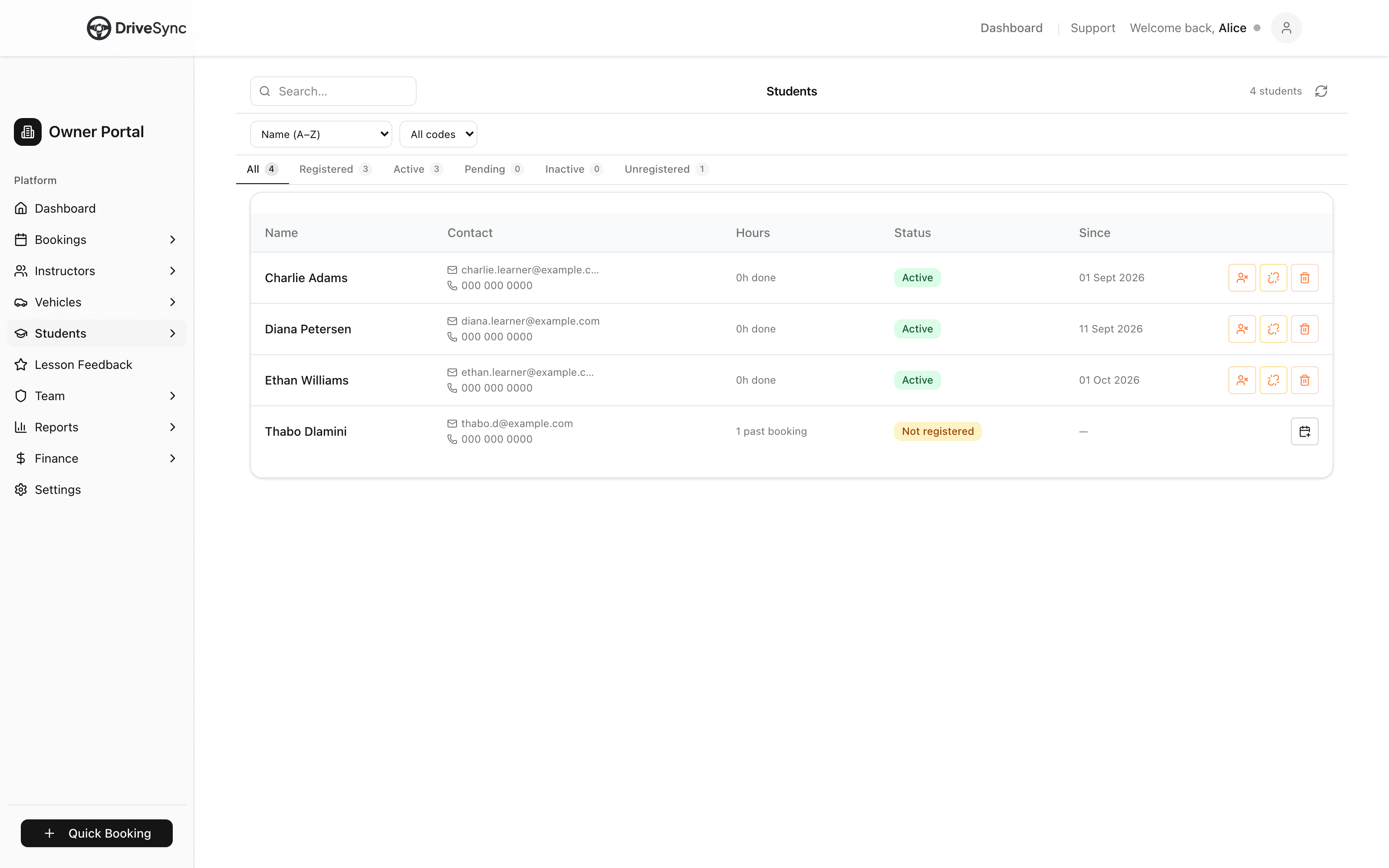
The Students list still open on the owner dashboard after reloading the page and closing Diana Petersen's side panel.
Busy weeks fit on Instructor Schedules
On a busy week, the day columns on Instructor Schedules grew to fit their widest booking, so the weekend could scroll off the screen even on a large monitor. The Schedule meeting and meeting details windows also didn't close with the Escape key.
Why it mattered: The days now share the width evenly, so the whole week fits (on smaller screens it still scrolls). A booking that runs past midnight shows as "23:00–01:00 +1", and the meeting windows close when you press Escape.
A full week of instructor bookings from Monday to Sunday fitting on one screen with evenly shared day columns, under Instructors › Schedules.
The update banner no longer covers buttons
The banner telling you a new version of the app is ready could sit on top of the buttons in side panels and pop-up windows.
Why it mattered: Side panels and pop-ups now show above the banner, so their buttons are always clickable.